 Keet Support
Mute a Chat 🔕
Select a chat's '•••' icon (or long-press it on mobile) and choose 'Mute' to pause its notifications for a set duration - 30 minutes up to 1 day - without muting all of Keet.
How do I mute a specific chat in Keet?
If one group or DM is noisy but you still want alerts from everything else, you can mute just that chat for a set period instead of snoozing all notifications app-wide.
🔕 Muting a chat only pauses alerts for that chat - message delivery, message sync, and app usage all continue as normal.
-
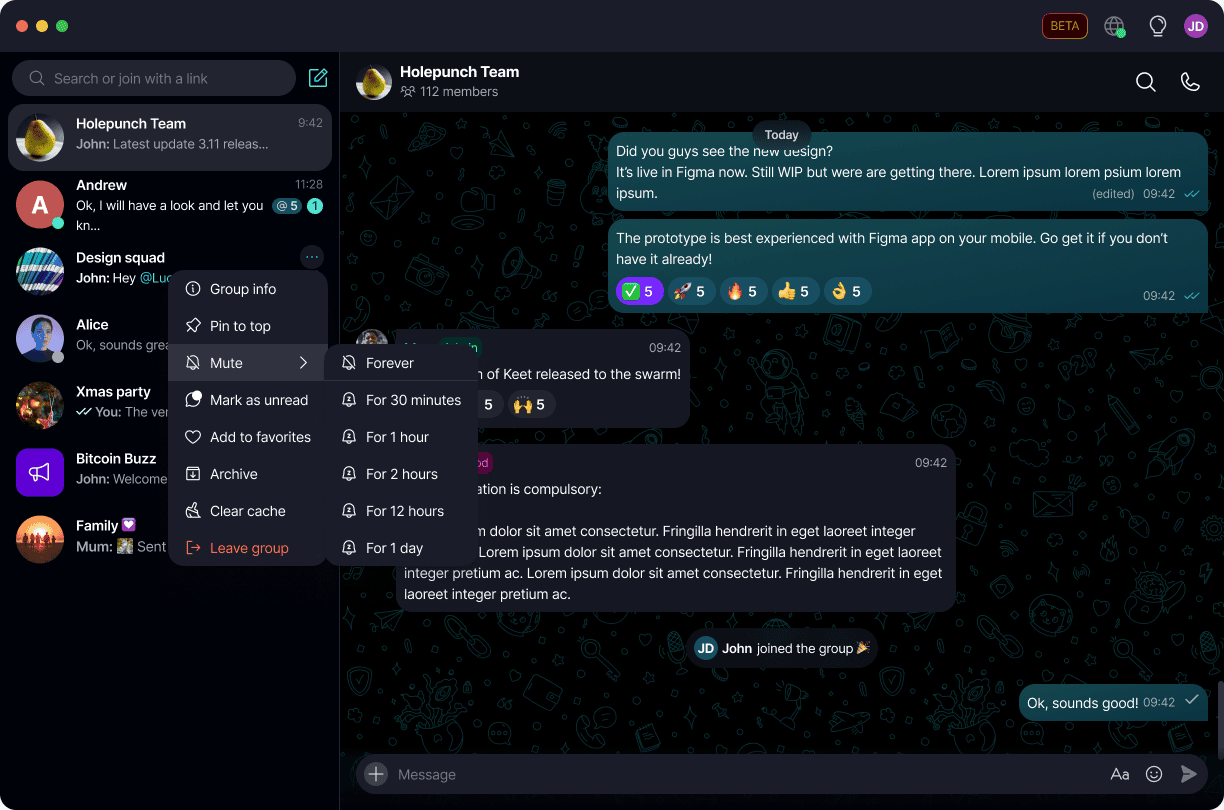
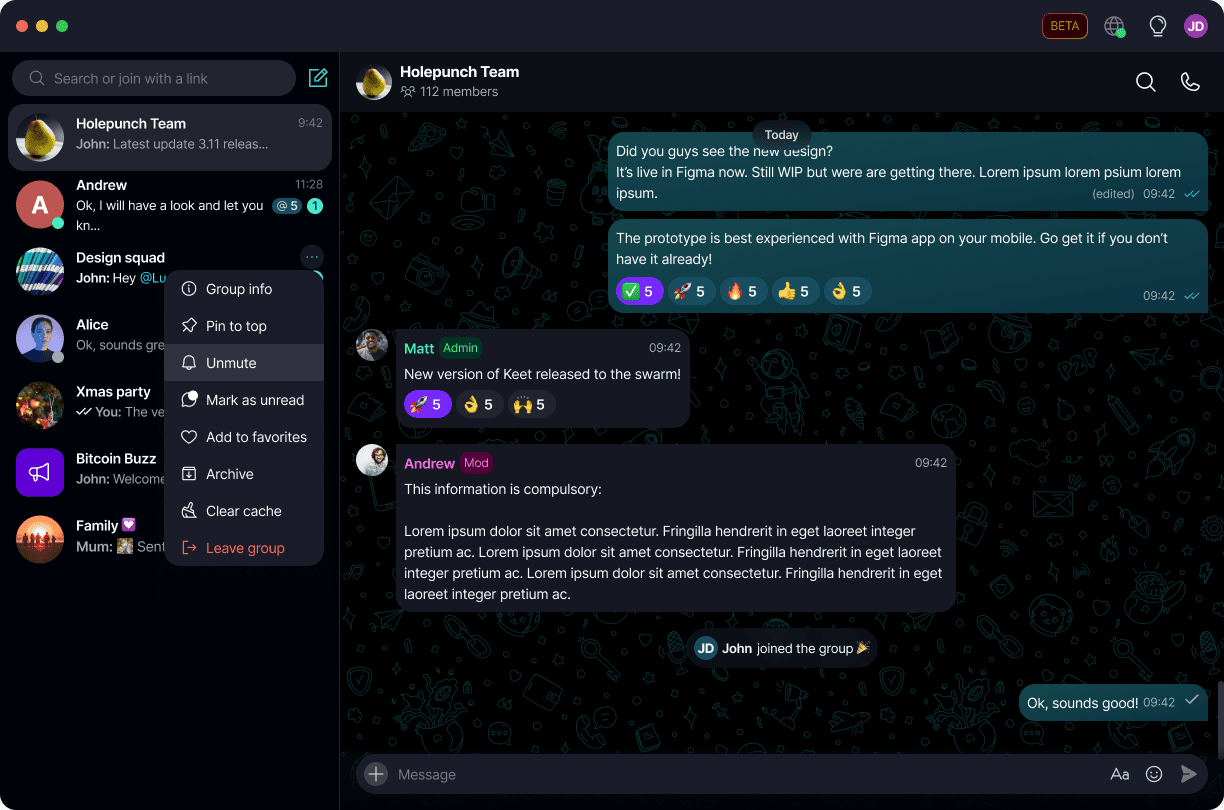
In the chat list, hover over a chat and select the '•••' icon, then select 'Mute' to open the duration list:
-
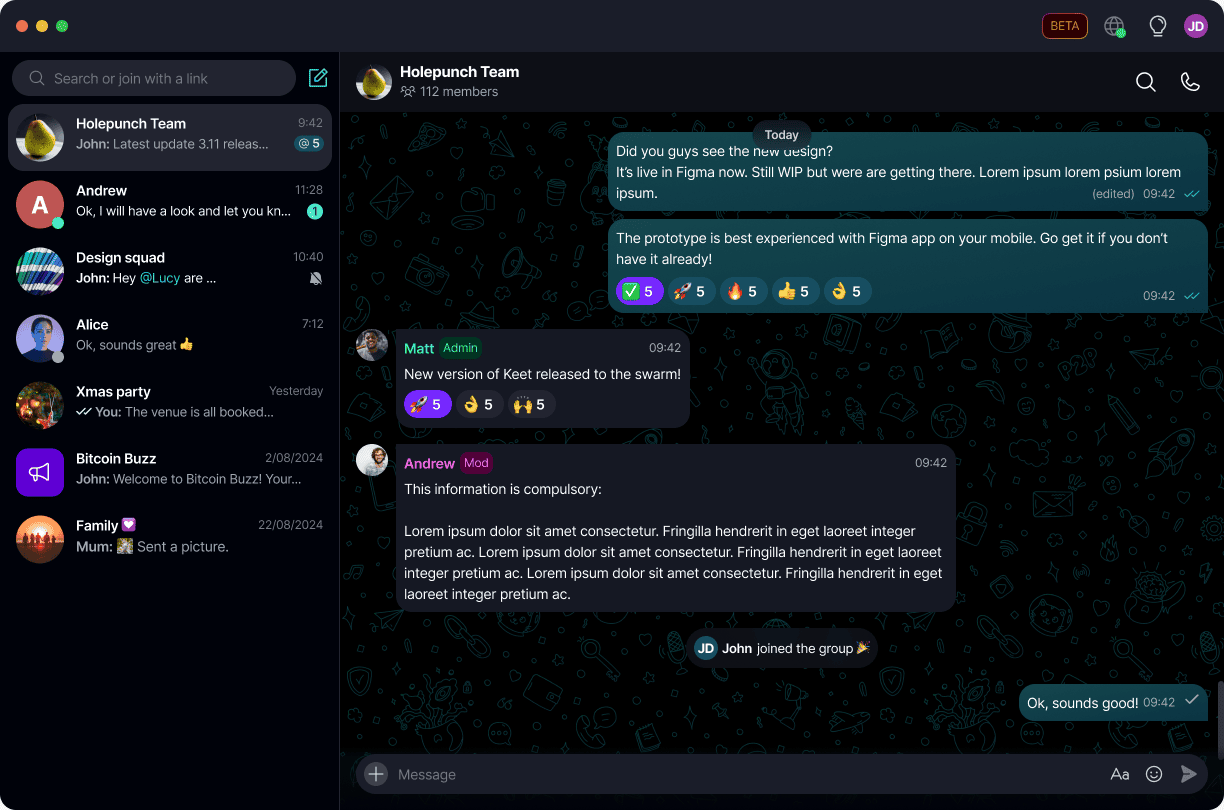
Choose how long to mute for - Forever, 30 minutes, 1 hour, 2 hours, 12 hours, or 1 day. The chat list now shows a mute icon next to that chat:
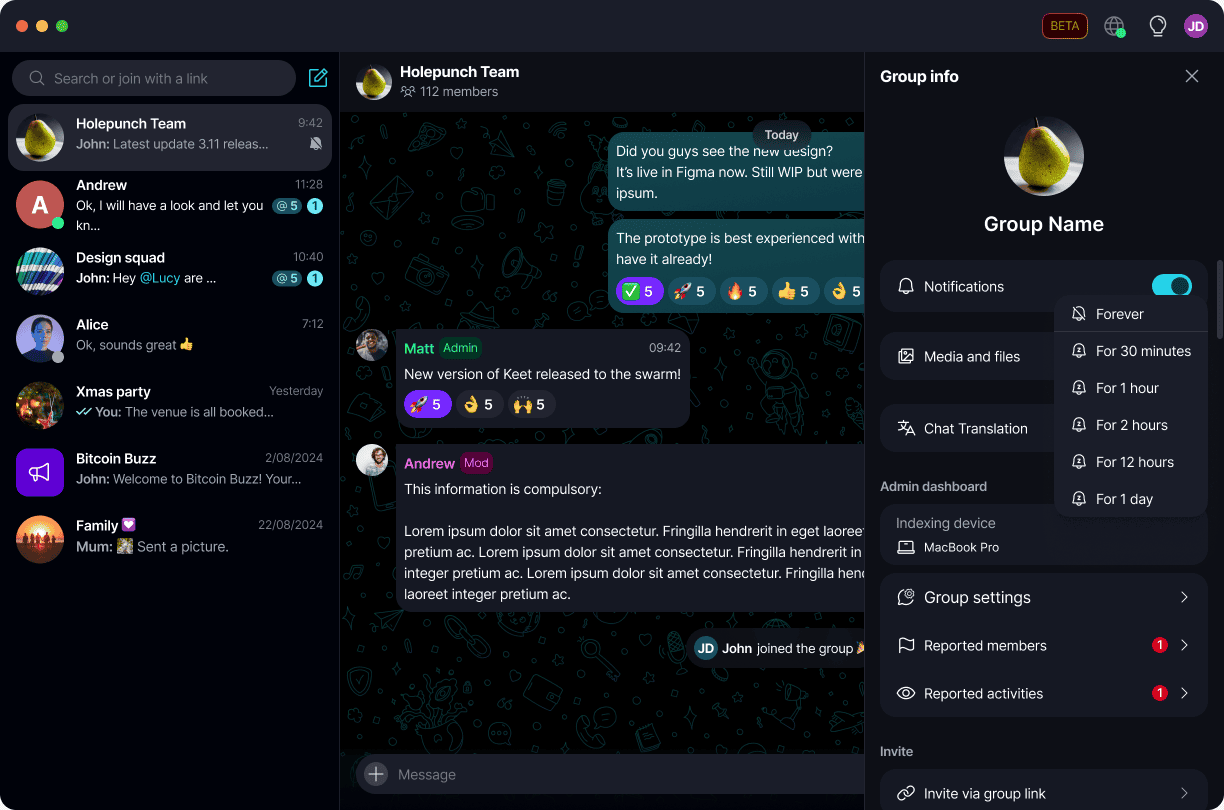
You can also mute from inside the chat - open it, select the chat name to open 'Group info', then toggle off 'Notifications' to open the same duration list:
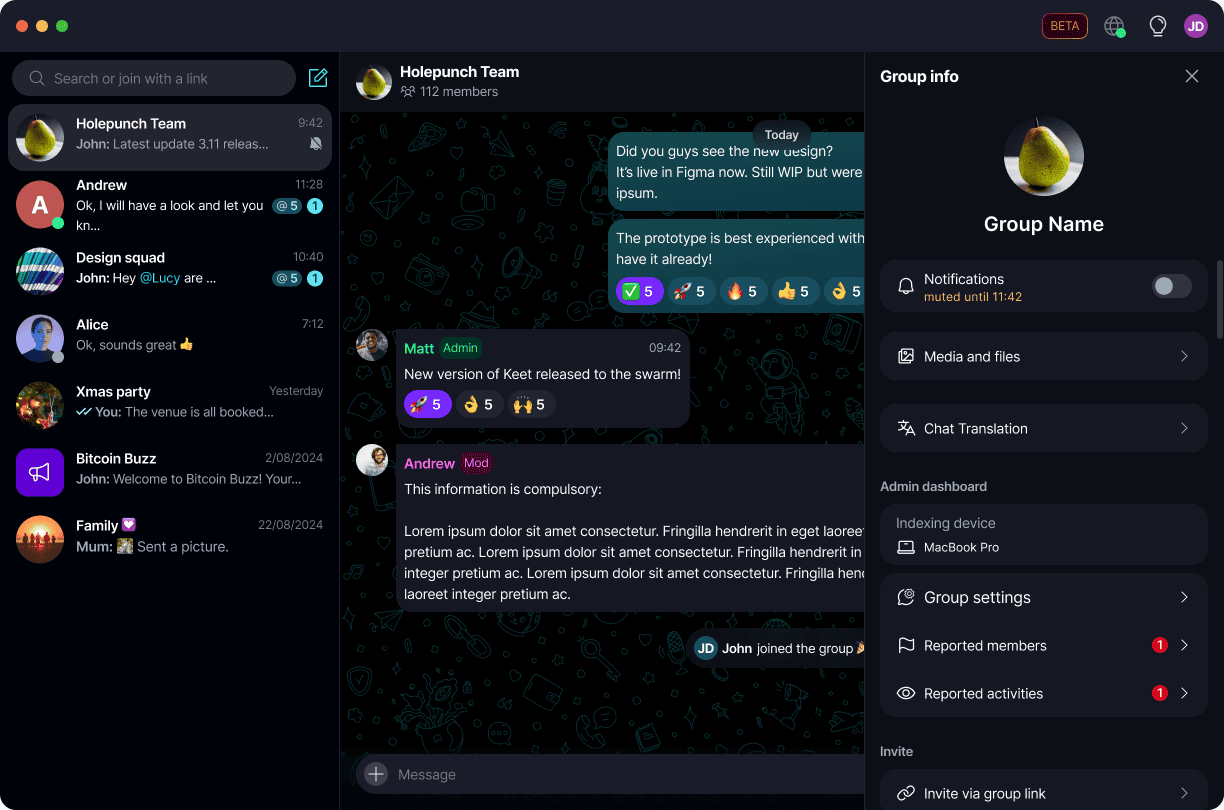
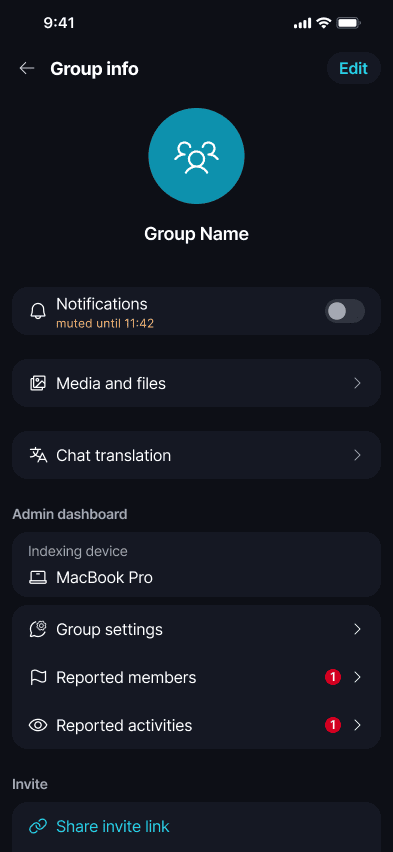
'Group info' now shows the active mute and the time it ends:
-
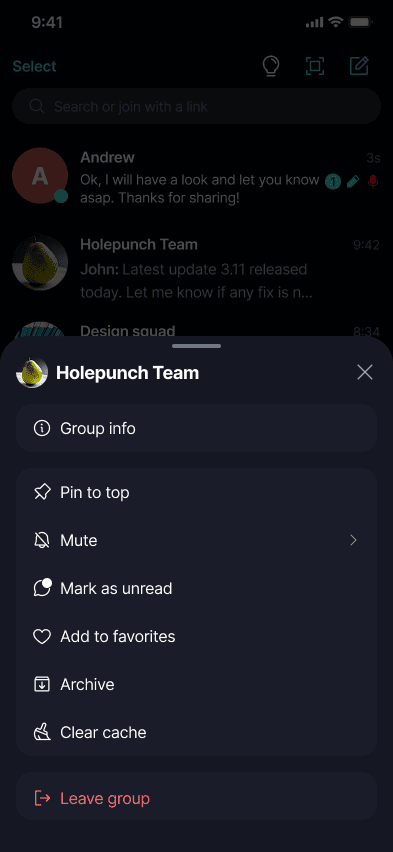
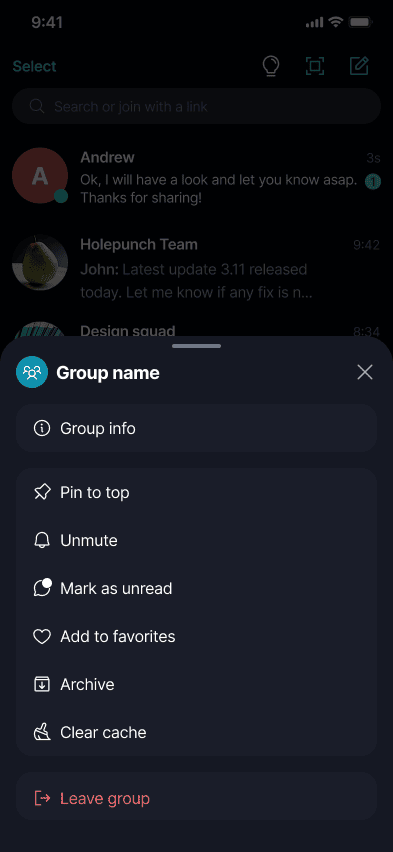
Long-press a chat to open its options, then tap 'Mute' to open the duration list:
-
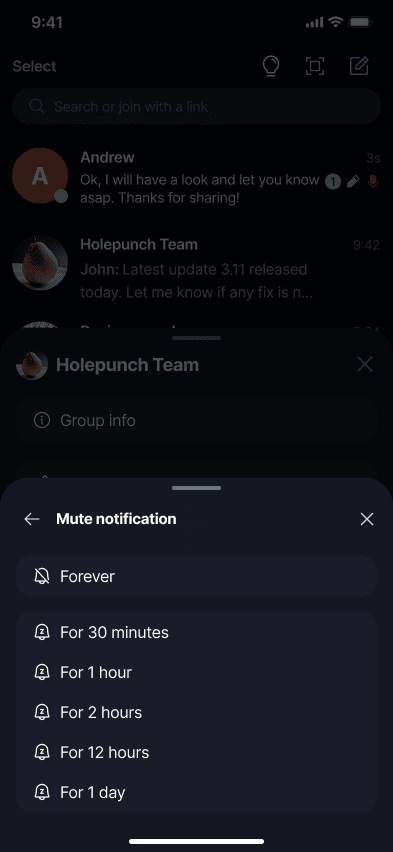
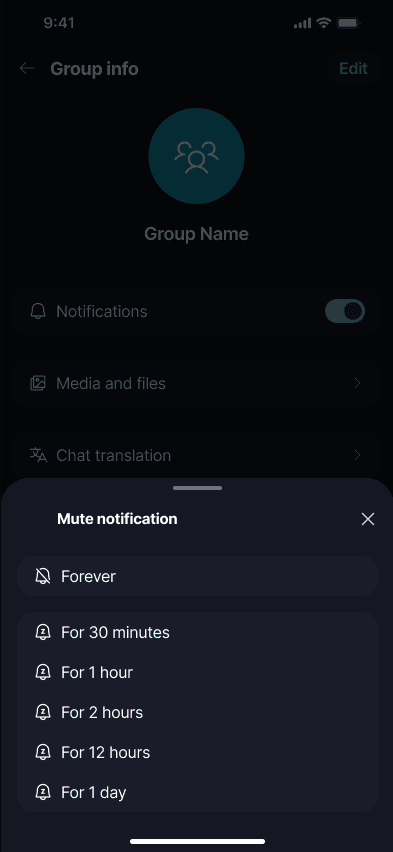
Choose how long to mute for - Forever, 30 minutes, 1 hour, 2 hours, 12 hours, or 1 day:
-
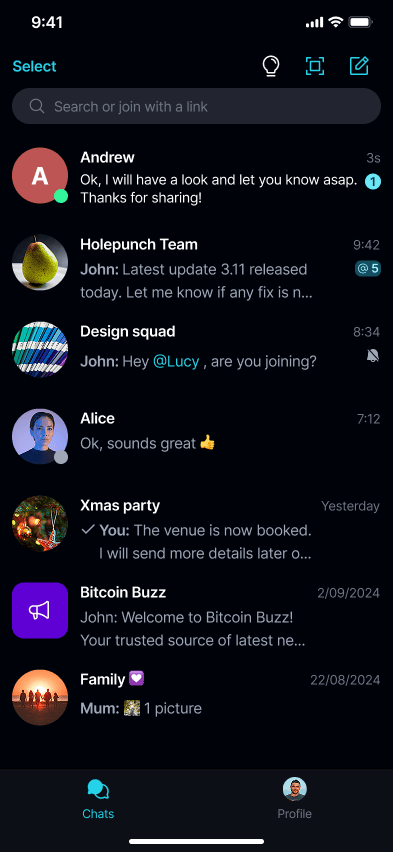
The chat list now shows a mute icon next to that chat:
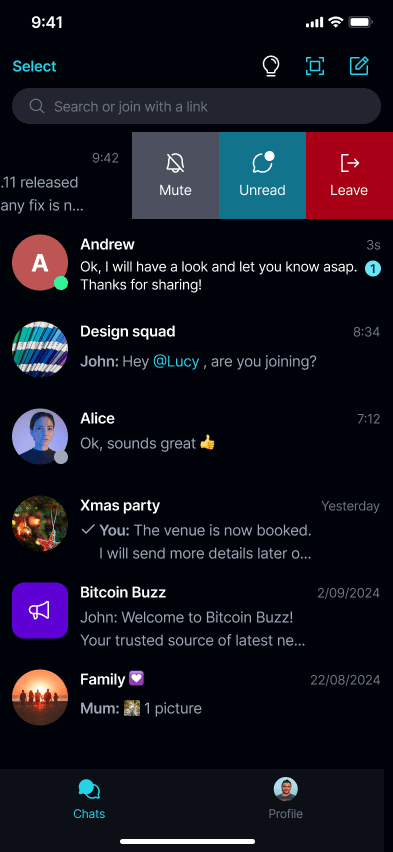
You can also swipe left on a chat and tap 'Mute' to open the same duration list:
Or open the chat, tap the chat name to open 'Group info', then toggle off 'Notifications' to open the duration list:
'Group info' now shows the active mute and the time it ends:
What happens while a chat is muted?
While a chat is muted, Keet:
- Does not show native push notifications for that chat.
- Does not show in-app notification banners or toasts for that chat.
- Does not play notification sounds for that chat.
Muting never blocks message delivery, message sync, or app usage for that chat - you'll still see everything as normal once you open it. Muting one chat has no effect on any other chat's notifications.
🔕 Your device's own settings take priority over Keet's in-app mute. If your OS-level Do Not Disturb, Focus, or notification permissions block Keet, notifications stay blocked even for chats you haven't muted. See Notifications for OS-level notification troubleshooting.
How do I stop muting a chat early?
Select the '•••' icon next to the chat, or open 'Group info', and select 'Unmute':
Long-press the chat and tap 'Unmute', or open 'Group info' and toggle 'Notifications' back on:
You can also swipe left on the chat and tap 'Unmute':
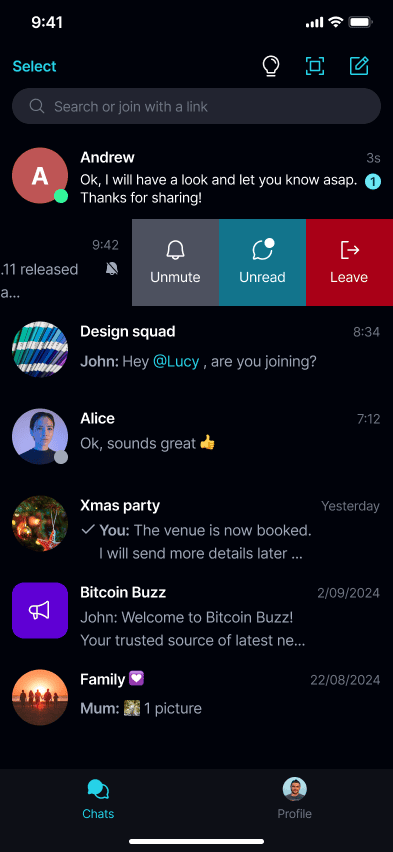
The mute also turns off on its own once the selected duration ends - you don't need to do anything.
Does muting a chat sync across my linked devices?
Yes. A chat's mute state is saved to your profile, so it propagates to any linked device using the same profile, as long as that device supports per-chat mute.
Want to pause alerts from every chat at once instead? See Snooze Notifications.